 English
 Español
 English
 Spanish
Preferred and Excluded Vendors
Tell PlantANT which nurseries you already buy from, and which ones you never want to see. Both lists live on your account, so they follow you from job to job.
Preferred nurseries are ranked first and can be used as a filter. Excluded nurseries disappear from plant search and from project sourcing until you take them off the list. A nursery can be on only one of the two lists.
This is a Professional User feature. Open it from My Account → Preferred Vendors.
Preferred
Nurseries you already have a relationship with. We star them in search results, can limit results to them, and can build a sourcing plan that favours or uses only them. Group them into zones if you visit several on the same run.
Excluded
Nurseries you want left out entirely — for example a broker listing material they do not actually grow. They never appear in Find Plants (unless you ask to see them) and are never used in a sourcing plan.
Manage your lists
-
Open Preferred Vendors
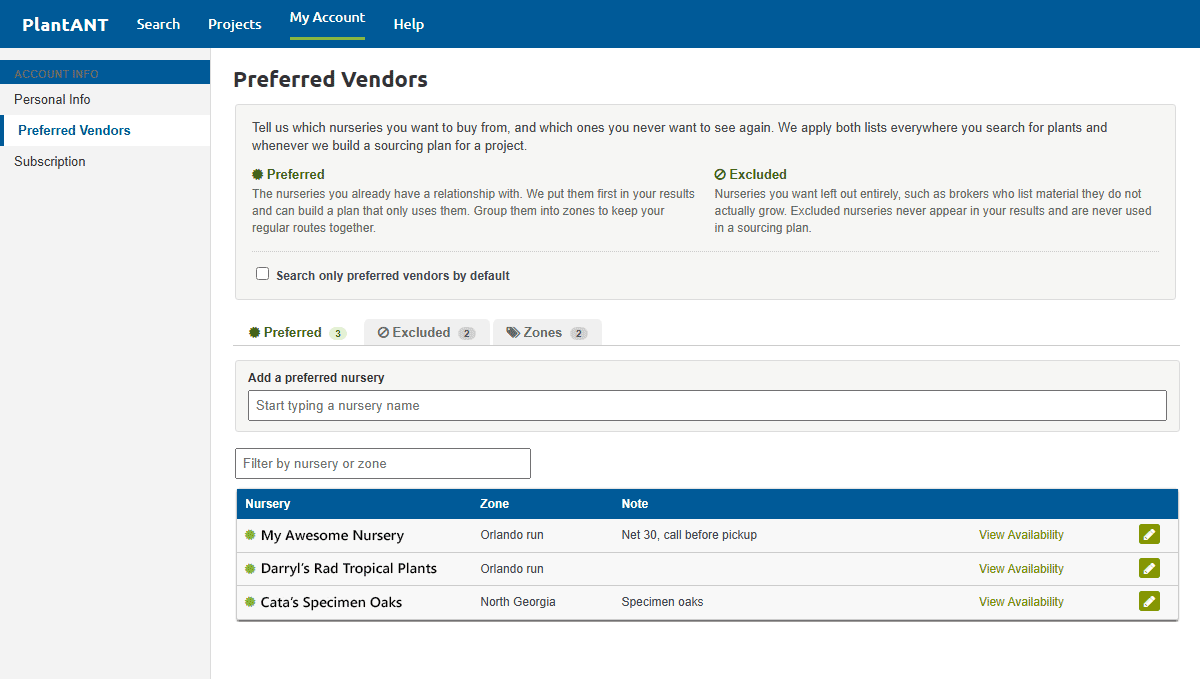
Log in, click My Account in the top navigation, then click Preferred Vendors in the left sidebar. The page has an intro, a default-search setting, and three tabs: Preferred, Excluded, and Zones.
Check Search only preferred vendors by default if most of your Find Plants searches should start on your preferred list. You can still turn that filter off on any individual search.
-
Add preferred nurseries
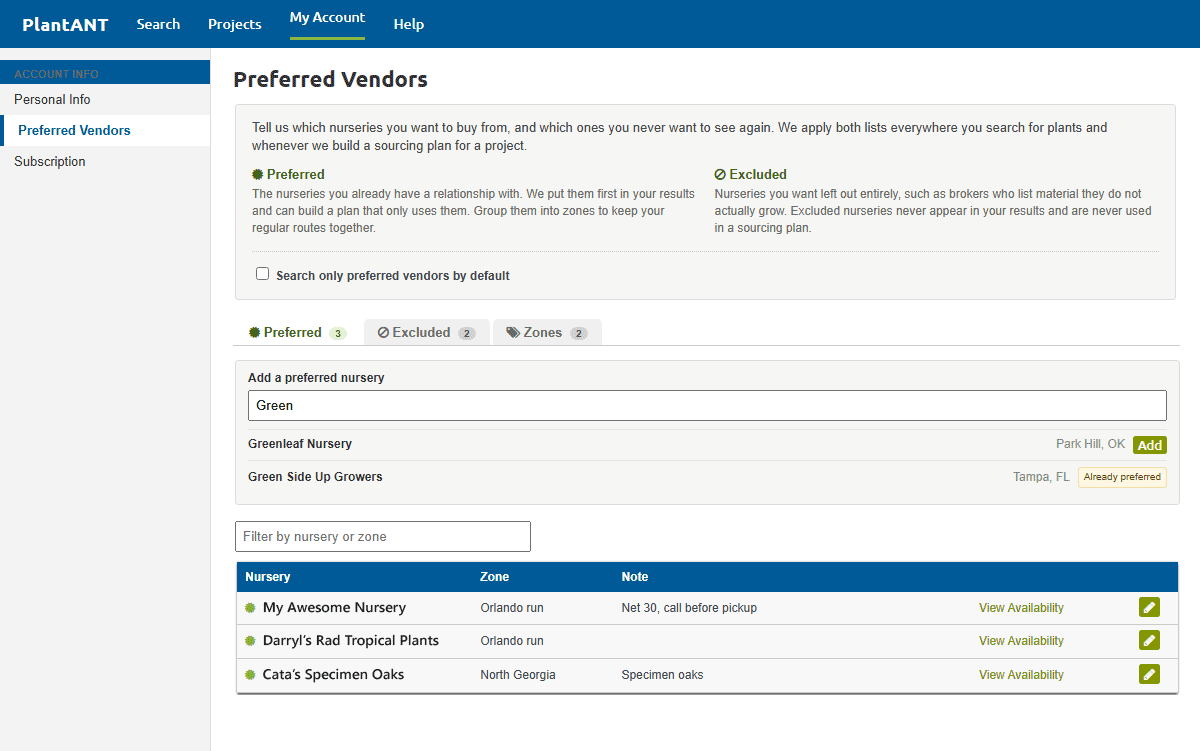
On the Preferred tab, start typing a nursery name and click Add. You can also mark a nursery from its information box in search. Use the pencil icon on a row to add a private note or assign a zone. Click View Availability to jump to that nursery's list.
-
Exclude nurseries
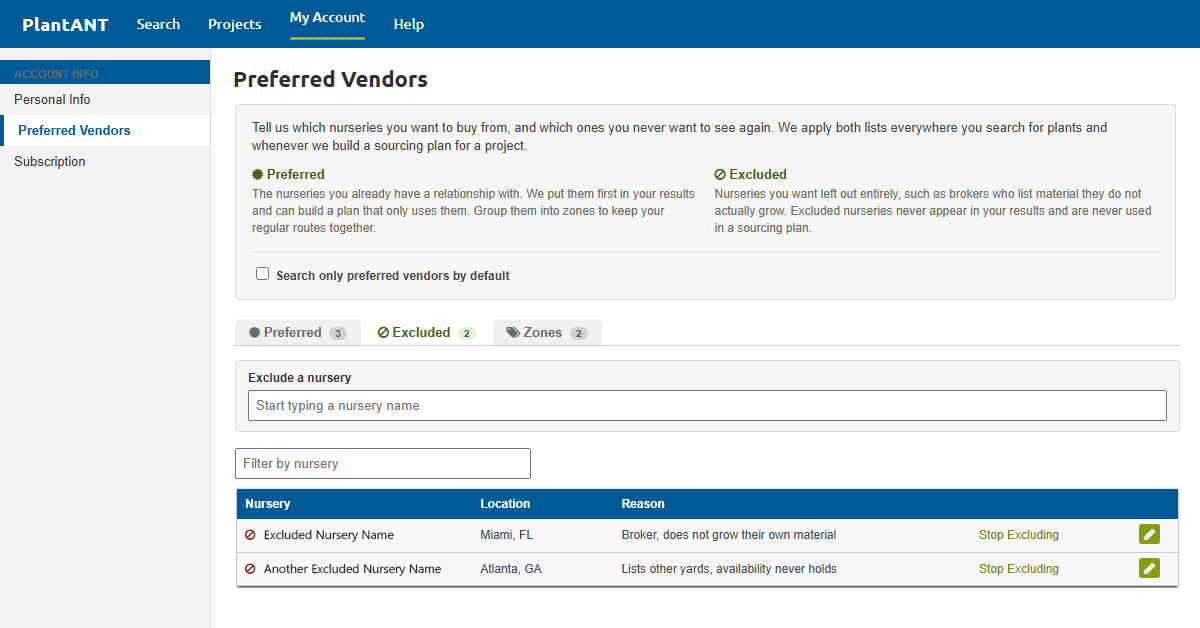
On the Excluded tab, search for a nursery and click Exclude. Optionally store a reason only you can see, such as “broker, does not grow their own material.” Stop Excluding puts them back in your results immediately.
Preferring a nursery removes it from Excluded, and excluding one removes it from Preferred. The two lists cannot overlap. -
Group preferred nurseries into zones
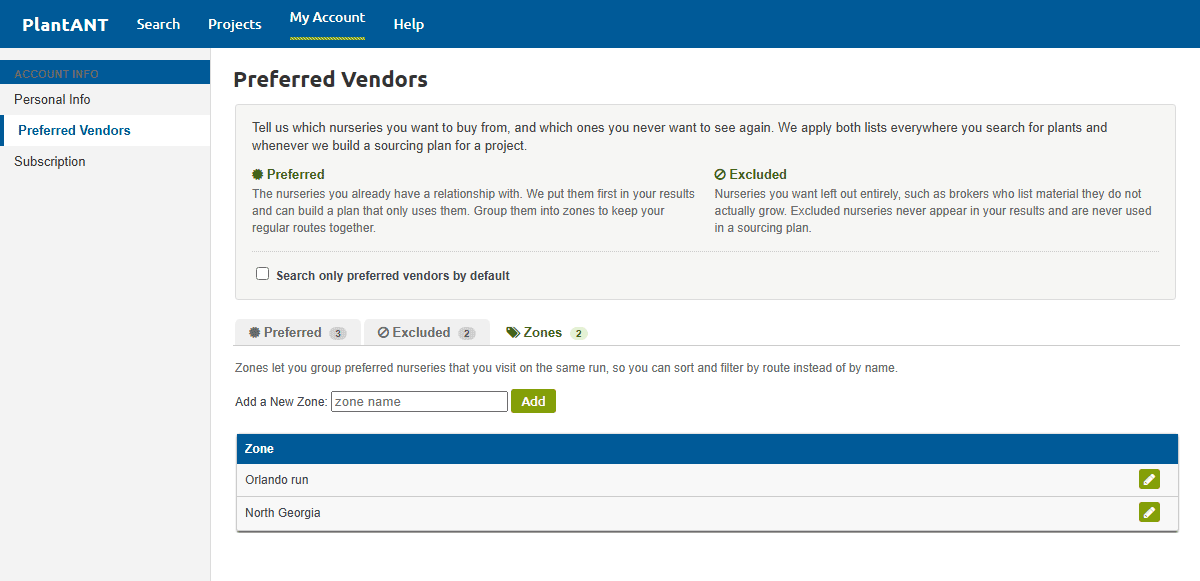
Zones are labels for preferred nurseries you visit on the same route — for example a city or a highway. Add a zone on the Zones tab, then assign it to nurseries on the Preferred tab. On Find Plants, zone checkboxes appear after you turn on Preferred Vendors Only.
How this affects Find Plants
On Find Plants, your lists change both which nurseries appear and how they are marked.
-
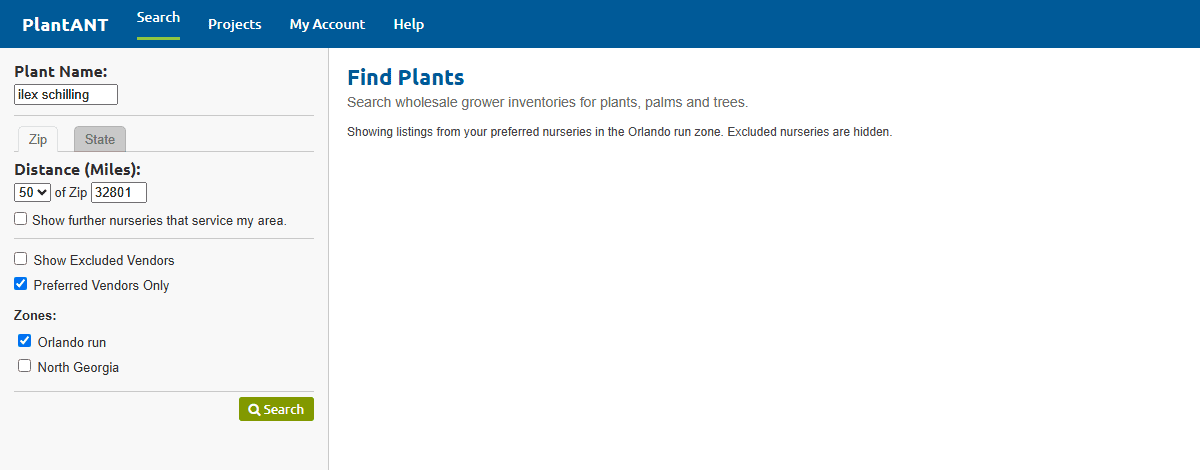
Use the vendor filters in the left column
After the distance options, Find Plants shows vendor checkboxes when your lists are not empty:
- Show Excluded Vendors is off by default. Leave it unchecked so excluded nurseries stay out of results. Check it only when you want to see them again for that search.
- Preferred Vendors Only limits results to nurseries on your preferred list. If you checked the default setting on the Preferred Vendors page, this box starts checked.
- Zones appear once Preferred Vendors Only is on, so you can narrow further to one route.
The same filters apply to the nursery listings under a plant, and to the image view of search.
-
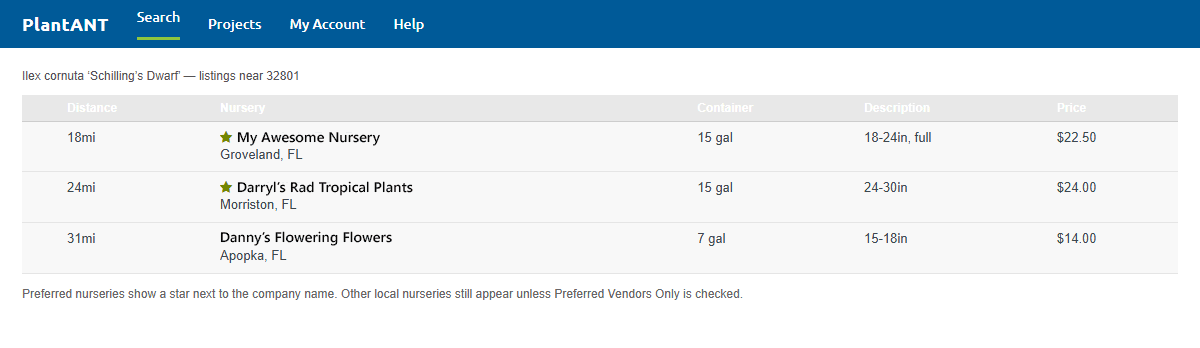
Preferred nurseries are starred in listings
When Preferred Vendors Only is off, you still see everyone in range. Nurseries on your preferred list get a star next to the company name so you can spot them while you compare prices.
-
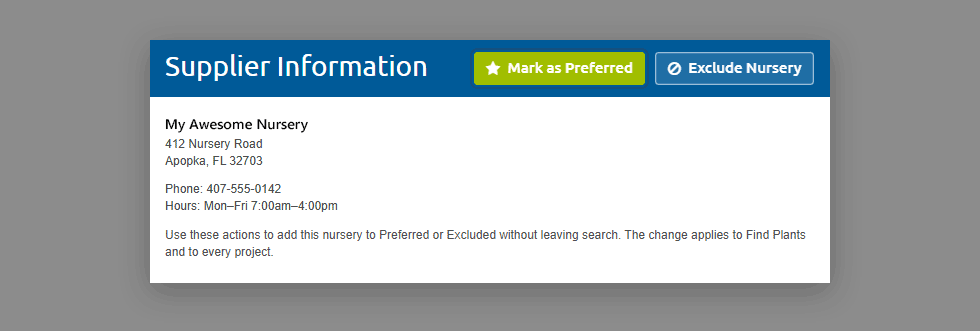
Prefer or exclude from a nursery's information box
Click a nursery name in search to open Supplier Information. From there you can Mark as Preferred Vendor or Exclude Nursery without leaving the result. Already-preferred nurseries show a green badge; excluded nurseries show a red badge that links back to your lists.
How this affects Projects
The same lists apply when you search inside a project. You do not have to rebuild them per job.
-
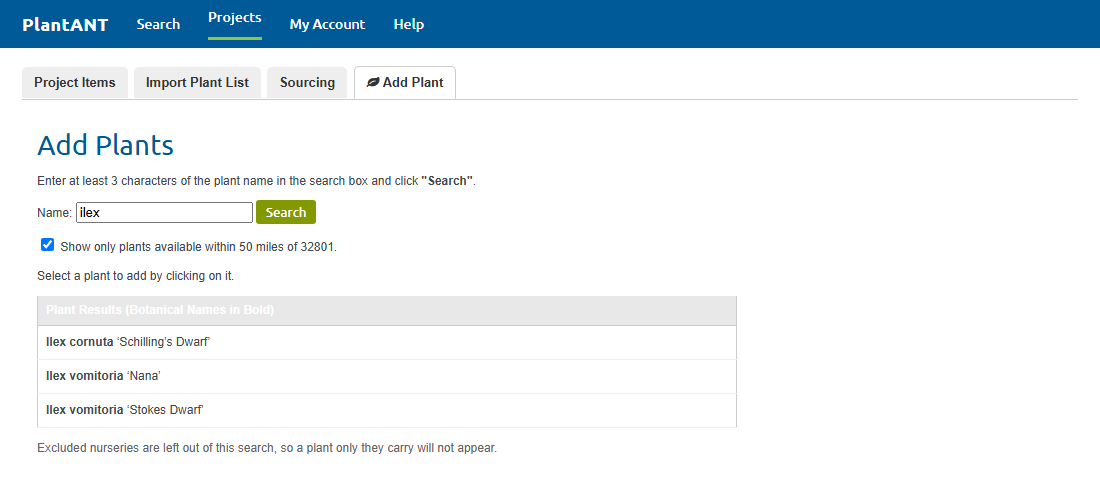
Searching for plants and listings on a project
On a project, Add Plant searches the catalog the same way Find Plants does. Excluded nurseries are left out, so a plant that only they carry will not appear. When you search for a listing to link to a line, those excluded nurseries are omitted from the results.
There is no extra checkbox on those project searches: exclusion is always on, matching Find Plants with Show Excluded Vendors unchecked. To put a nursery back, remove it from the Excluded tab (or click Stop Excluding).
-
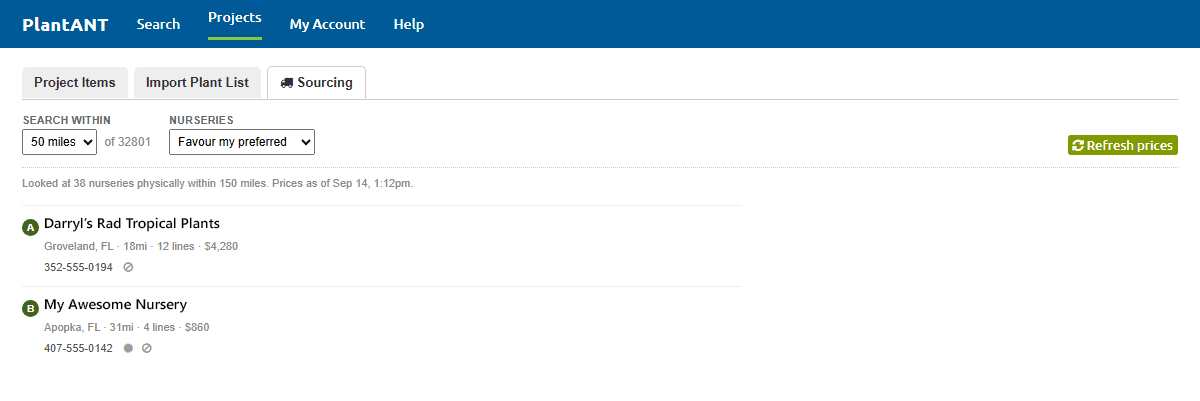
Choose how nurseries are used on the Sourcing tab
Open a project and click the Sourcing tab to build a pickup plan for the whole list. The Nurseries dropdown controls how your lists are used:
- All local nurseries — every physically nearby grower except the ones you excluded.
- Favour my preferred — still fills gaps from other local nurseries, but ranks your preferred list first.
- Preferred only — builds the plan using only nurseries on your preferred list.
- All including excluded — temporarily shows excluded nurseries in the plan (marked) without changing your excluded list. Use this if nobody else nearby carries a line.
Each stop has Prefer and Exclude actions, so the moment you recognize a broker in a plan you can drop them from every future search. Preferred stops show a star; excluded stops (when you asked to include them) show a ban icon.
What to expect
- Lists belong to your user account, not to a single project or zip code.
- Excluded nurseries stay out of Find Plants, project plant search, linked-listing search, and sourcing plans until you stop excluding them.
- Preferred is a ranking and an optional filter. It does not hide other nurseries unless you turn Preferred Vendors Only on (Find Plants) or choose Preferred only (Sourcing).
- Sourcing only uses nurseries that are physically in range. It does not pull in growers who merely ship into your state.